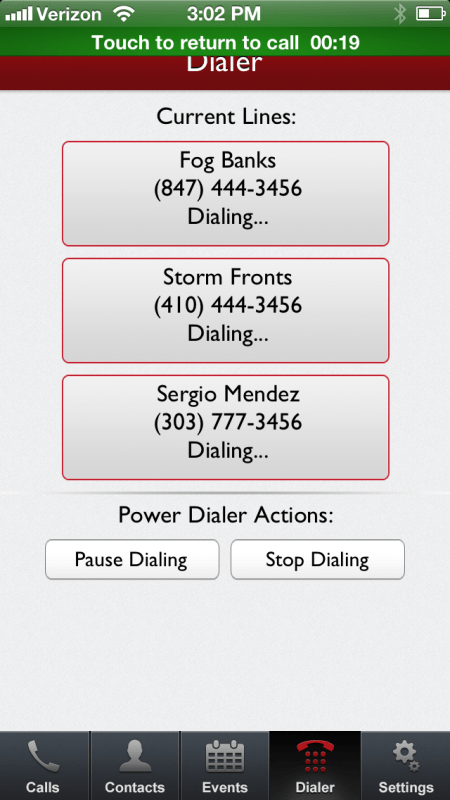
The Mojo Dialer for iPhone is coming back!
Unless you’ve been sleeping for the past 6 months, you have seen us build up the Mojo Cloud with our new web-based Mojo Dialing system and family of mobility products,...
Your call data lives in Mojo. Your AI assistant lives somewhere else. More and more agents start the morning by asking an assistant like Claude to help plan the day: who to follow up with, how the week is trending, where the time actually went. Until now, your dialing results were not part of that conversation. If you wanted your assistant to know how yesterday’s calls went, you had to open Mojo, look the numbers up, and type them in yourself.
That gap just closed.
Mojo now offers a hosted connector for AI assistants, built on MCP, the open standard that tools like Claude, Claude Code, and Codex use to talk to outside services. You add the connector to the assistant you already use, sign in to your Mojo account, and from then on you can ask about your own dialing data in plain language. You decide which assistant to connect and what to ask it. The connector simply answers with your own data.
Today it can do four things:
That covers questions like “How did my dialing go this week?”, “List yesterday’s calls that reached a contact”, and “Compare my dial sessions this week vs last week.” Your assistant picks the right capability behind the scenes. You just ask the question.
There is nothing to download or install. The connector is hosted by Mojo, and setup takes about a minute in any MCP-capable tool:
claude mcp add --transport http mojo https://mcp.mojosells.com/mcp, then choose Authenticate from the /mcp menu.codex mcp add mojo --url https://mcp.mojosells.com/mcp, then codex mcp login mojo.Whichever path you take, the last step is the same: your browser opens Mojo’s own login page and you sign in there, the way you always do. Your password is never shared with the assistant or with the connector. Access is tied to your account, expires automatically, and you can disconnect it whenever you want.
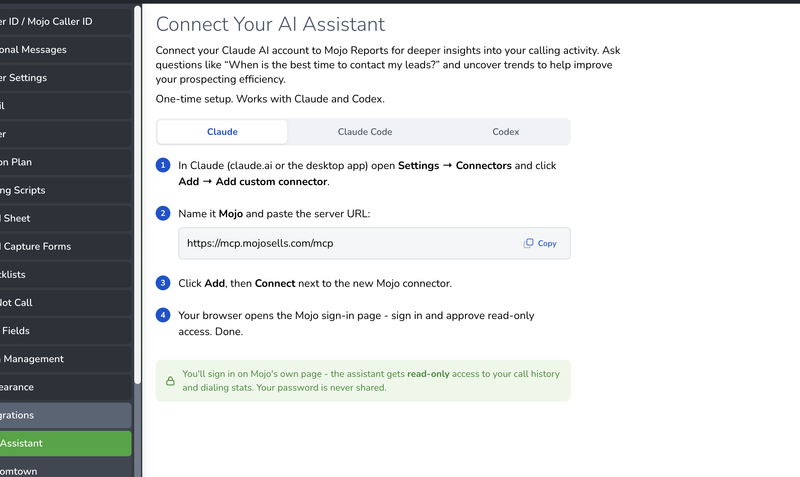
This first release is read-only on purpose. The connector can read your call history and dialing statistics, and that is all it can do. It cannot edit contacts, log calls, change your lists, or touch anything else in your account. We wanted the first version to be small, clear, and easy to reason about, so we started with the thing agents ask about most: their own results.
What comes next will be shaped by what customers actually ask for. If you find yourself wishing your assistant could do one more thing with Mojo, that is exactly the feedback we want to hear.
The connector is live now. Add https://mcp.mojosells.com/mcp to your assistant, sign in, and ask how your dialing went this week. It is your data, your assistant, and your call what to do with it.
The Mojo MCP connector is a hosted service that lets you connect your AI assistant to your own Mojo account. Once connected, you can ask it questions in plain language, like “How did my dialing go this week?”, and your assistant answers using your actual call history and dialing statistics.
Yes. The connector can read your call history and dialing statistics, it cannot change anything in your Mojo account. Access is per account, expires automatically and you can reconnect or revoke at any time.
Any assistants that support MCP (Model Context Protocol) custom connectors. That includes Claude Desktop, Claude.ai, Claude Code in terminal and Codex.